Skip to content

excel

5 posts with the tag “excel”

Toast modifier sales report cleanup in Excel

Modifier cleanup is not just deleting blank rows. The goal is a table where each modifier remains traceable to its source and its parent item—or is clearly marked for review.

The problem

Toast modifier data can contain repeated names, zero-priced choices, paid add-ons, special requests, voids, malformed values, and parent IDs that do not exist in the chosen item file. Removing “messy” rows can make totals look neat while destroying the audit trail.

Example Toast CSV columns

business_date,parent_item_selection_id,modifier_group,modifier_name,quantity,net_price,voided
2026-06-22,item-204,Cheese,Extra cheese,1,2.00,false
2026-06-22,item-999,Add-ons,Avocado,1,2.50,false

Keep these cleanup columns beside the normalized values:

  • source filename;
  • source row number;
  • parent match status;
  • parse warning;
  • voided status;
  • review note.

Cleanup sequence

  1. Preserve the untouched CSV.
  2. Normalize whitespace without changing the source field.
  3. Parse quantity and currency explicitly.
  4. Keep zero values distinct from blanks and invalid text.
  5. Check whether each parent ID matches exactly one Item Selection.
  6. Mark unmatched and ambiguous relationships.
  7. Keep voided rows visible.
  8. Build modifier frequency and value summaries from reviewed rows.

Do not deduplicate repeated modifier names automatically. Two “Extra cheese” rows may represent two deliberate selections.

Screenshot and demo
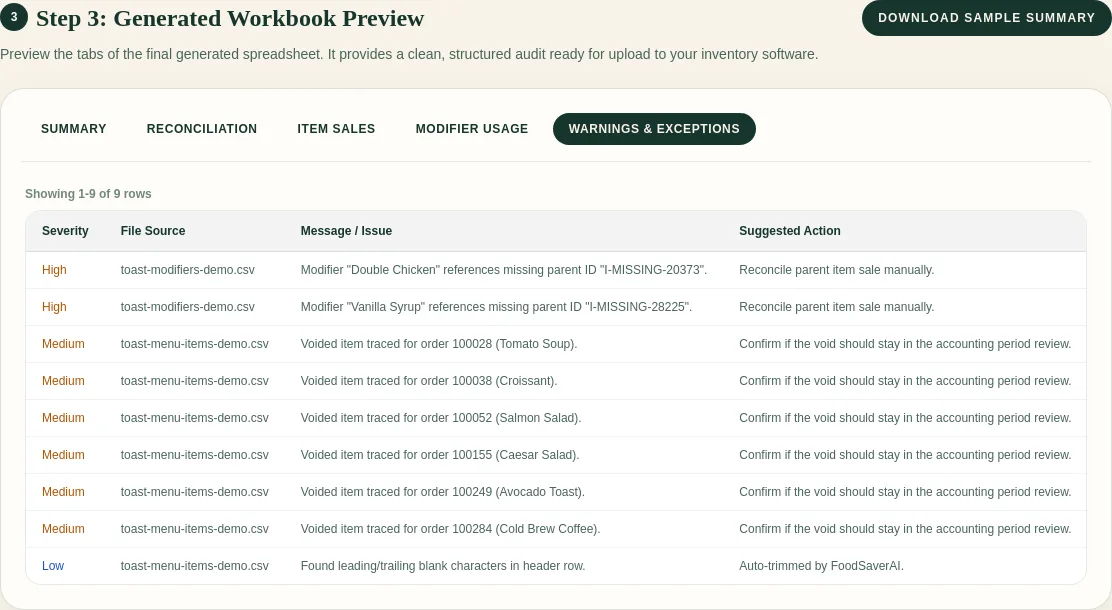
FoodSaver workbook preview showing unmatched and voided rows

The exception sheet is part of the deliverable, not a failure screen.

Free sample workbook

Use the synthetic item-999 row to test how your process handles an unmatched parent.

Pricing

Generate up to three successful workbooks per UTC day for free within the free limits. Pro is $19/month or $190/year and adds larger limits, saved mappings, history, email delivery, and 90-day retention.

Compare plans.

Frequently asked questions

Should zero-priced modifiers be removed?

No. They may represent included choices or operational preferences. Keep them for frequency analysis.

Can I deduplicate by modifier name and check number?

Not safely. One check can include multiple identical items and modifiers.

Should voided modifiers count?

Keep them visible and decide explicitly which analysis excludes them.

Why preserve invalid raw values?

They show what the source contained and make correction possible without guessing.

Sources

Related: how to combine ItemSelectionDetails and ModifierSelectionDetails.
Try the free Toast Prep + OneCSV workbook generator.

How to combine Toast ItemSelectionDetails and ModifierSelectionDetails

Toast’s nightly data exports can include Item Selection Details and Modifier Selection Details. The files belong together, but they cannot be stacked into one table: an item row and a modifier row represent different things.

The problem

One Item Selection is a sold menu item. One Modifier Selection is a choice attached to an item. A Burger with Extra Cheese and Bacon can therefore produce one item row and two modifier rows.

If you merge by item name, check number, timestamp, or row position, repeated items can receive the wrong modifiers. If you total both tables without a documented revenue rule, paid modifier value can be counted twice.

Example Toast CSV columns

Your configured Toast export columns may differ. Preserve the originals and map the fields needed for the relationship.

Item Selection Details

item_selection_id,business_date,item_name,quantity,net_price
item-204,2026-06-22,Burger,1,10.00

Modifier Selection Details

parent_item_selection_id,modifier_name,quantity,net_price
item-204,Extra cheese,1,2.00
item-204,Bacon,1,3.00

The safe relationship is:

Modifier.parent_item_selection_id = Item.item_selection_id

Use it only when the item ID is non-empty and unique. Duplicate item selection IDs make the relationship ambiguous.

Step-by-step Excel method

  1. Load each CSV as a separate Excel table.
  2. Keep a source row number in both tables.
  3. Check Item Selection IDs for blanks and duplicates.
  4. Use Power Query to merge the modifier table into the item table with a left outer join on the exact identifiers.
  5. Expand modifier name, quantity, and value into a detail view.
  6. Keep unmatched modifier rows in a separate query.
  7. Build item sales and modifier analysis as separate PivotTables.

Do not concatenate modifier names until after the row-level join has been checked. The detail table is easier to audit than one long text cell.

Screenshot and demo

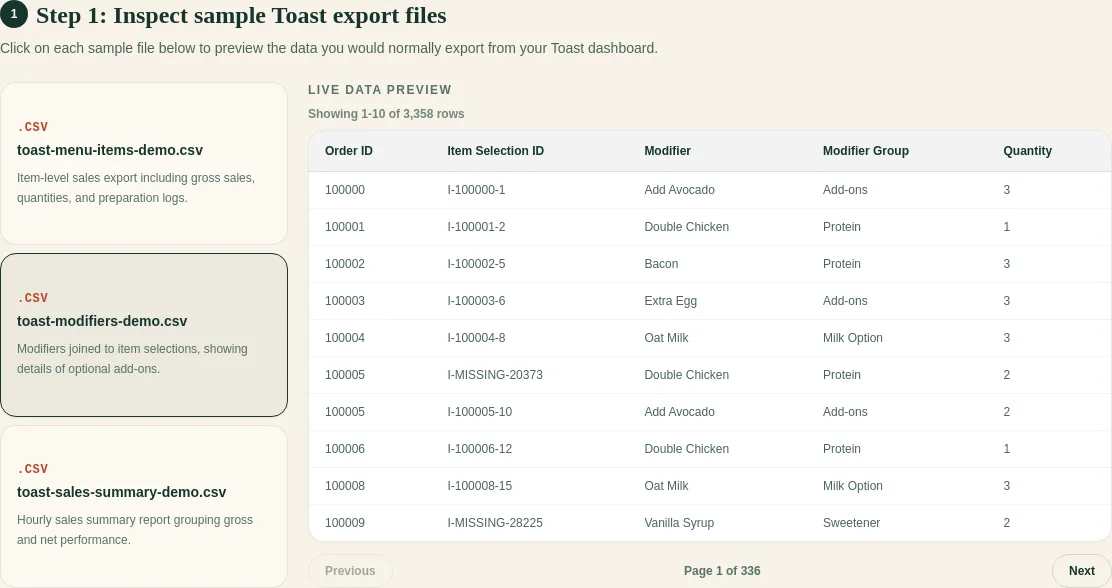
Synthetic Toast Item Selection and Modifier Selection rows in the FoodSaver preview

FoodSaver follows the same exact-ID rule and puts rows that cannot be joined in the workbook’s exception view.

Free sample workbook

Open all three in Excel to practice the join with synthetic data.

Pricing

You can generate three workbooks per UTC day for free within the free limits. FoodSaverAI Pro is $19/month or $190/year and adds larger files, saved mappings, workbook history, email delivery, and 90-day retention.

Compare Free and Pro.

Frequently asked questions

Is ItemSelectionDetails the same as Product Mix?

No. Item Selection Details is row-level. Product Mix aggregates menu-item performance for a selected period.

What if a modifier has no parent item?

Keep it unmatched with its source row. Check date coverage, location, and whether the Item Selection export is complete.

Can one item have several modifiers?

Yes. A one-to-many relationship is expected.

Should I sum item and modifier net prices?

First confirm how your configured exports represent modifier charges. Keep the two totals separate until the accounting rule is documented.

Sources

Next: clean the Toast modifier report.

Try the free Toast Prep + OneCSV workbook generator.

Toast Product Mix by day of week in Excel

A weekday PMIX view helps answer a narrow question: what usually sells on this kind of operating day? It is more useful for prep than an all-days average, provided the date coverage is honest.

The problem

Grouping sales by weekday is easy. Building a trustworthy comparison is harder. A four-Monday sample should not be compared with five Fridays as raw totals. Closed holidays should not silently behave like zero-demand days. Refunds and report definitions also need review.

Example Toast CSV columns

business_date,menu_group,item_name,quantity_sold,net_sales
2026-06-01,Entrees,Chicken Bowl,38,456.00
2026-06-08,Entrees,Chicken Bowl,42,504.00
2026-06-15,Entrees,Chicken Bowl,35,420.00

Add helper columns in Excel:

weekday = TEXT([@business_date],"dddd")
week_start = [@business_date]-WEEKDAY([@business_date],2)+1

Use a real date value, not a text label that merely looks like a date.

Build the PivotTable

  1. Put item_name in Rows.
  2. Put weekday in Columns or Filters.
  3. Put quantity_sold in Values.
  4. Show both Sum and Average.
  5. Add a distinct operating-date count outside the PivotTable if needed.
  6. Divide total quantity by included open dates for a per-day average.

Keep zero sales separate from “restaurant closed” and “missing export.” Those states mean different things.

Screenshot and demo

Synthetic Toast export preview with business dates and item rows

The preview step is where you should catch mismatched locations, periods, and file types before building the weekday table.

Free sample workbook

Download the Excel-ready weekday PMIX sample and download the prep conversion template.

The sample has three Mondays so you can compare total, average, minimum, and maximum quantities without using restaurant data.

Pricing

The FoodSaver workbook generator includes three free successful generations per UTC day within free limits. Pro costs $19/month or $190/year for larger files, saved mappings, report history, email delivery, and 90-day retention.

Review pricing.

Frequently asked questions

Does Toast PMIX already show day of week?

The Toast PMIX report supports selected date ranges and day-to-day item views, but an exported analysis may still need a weekday helper column depending on the file you downloaded.

Should holidays be included?

Flag them. Include them only when the target service is comparable.

Is average enough?

No. Review sample size, range, recent trend, sell-outs, promotions, and known events. Average is a baseline, not a forecast.

Do refunds reduce PMIX quantities?

Toast documents that menu reports, including Product Mix, are not reduced by refunds. Confirm the report behavior against the operational question you are answering.

Sources

Next: turn POS sales into a prep list.

Try the free Toast Prep + OneCSV workbook generator.

How to avoid double-counting Toast modifier revenue in Excel

The Toast Prep workbook uses separate item and modifier views because the two exports answer different questions. Adding both views without a reconciliation rule can overstate sales.

Item rows record menu-item selections. Modifier rows record details attached to those selections. A workbook can count the same economic activity twice when it treats both sets of rows as independent sales.

A small numeric example

Assume the source data contains:

SourceRowAmount
Item SelectionBurger$10.00
Modifier SelectionExtra cheese$2.00

A correct check total might be $12.00. A bad workbook can accidentally add the $10 item total to a separate $12 item-with-modifier total and report $22.00.

The safe review keeps the base item result and modifier detail in separate views, with a reconciliation rule that explains which values contribute to the total.

Start with item revenue

Build the base sales total from Item Selection first. This gives you one stable item-level review before modifiers enter the workbook.

At this stage, check:

  • total item sales;
  • discounts;
  • refunds or voids;
  • unusual zero or negative values;
  • missing menu item names;
  • rows outside the expected period.

Confirm how the export represents modifier values before adding them to the base total.

If you are unsure which file should provide the base grain, start with Item Selection vs Modifier Selection.

Treat modifier rows as detail first

Modifier Selection is best reviewed as detail attached to item rows.

Useful questions include:

  • which modifiers were selected most often;
  • which items receive the most modifiers;
  • whether modifiers are paid, included, or informational;
  • which modifiers cannot be matched to an item.

Those operational questions can use modifier counts and attachment detail without creating a second revenue total.

Excel and PivotTable warning

Keep item revenue and modifier detail in separate PivotTables. Use the modifier table for frequency and attachment analysis, then reconcile paid modifiers through a documented formula.

Join only by exact item selection ID

A modifier should attach to an item only when the parent item selection ID is exact and unique.

Avoid fuzzy matching by:

  • item name;
  • check number alone;
  • timestamp alone;
  • row order;
  • menu group.

Those fields may help a human review an exception, but they are not safe join keys for an automated workbook.

Matching methodSafe for automatic joins?Why
Exact unique parent item selection IDYesTraceable to one item row
Item nameNoThe same item appears many times
TimestampNoMultiple selections can share a timestamp
Row orderNoExport order can change
Check number aloneNoOne check contains multiple items

Keep a separate modifier detail sheet

A clean workbook can include two useful views:

  • an item summary with modifier information included once;
  • a modifier detail sheet with one row per item-modifier relationship.

The modifier detail sheet should warn reviewers not to sum it blindly with the item summary. It exists for analysis and audit, not as a second sales total.

Show unmatched modifiers

Put unmatched modifiers in an exception sheet with the source file and row number.

That gives the bookkeeper or operator a clear next step:

  1. Check whether the source export is complete.
  2. Confirm the date range.
  3. Review the parent selection ID.
  4. Decide whether the row should be included manually.

FoodSaver workbook preview showing unmatched parent IDs and voided rows in the Warnings and Exceptions tab

FoodSaver puts these rows in the workbook with their source references so the bookkeeper can resolve them before sending the report.

Frequently asked questions

Is every modifier amount already included in the item amount?

Toast report settings and exported columns can vary. Review the item and modifier amount fields before choosing a reconciliation formula.

Can I match an unmatched modifier by item name?

Use the name to investigate, not as an automatic join key. The same menu item can appear many times in one period.

What should I send to the owner?

Send the item-level summary, a short exception count, and the modifier detail needed for the question at hand. Label each table so the owner knows which figures contribute to the sales total.

Continue with the weekly Toast sales review checklist or review your exports in FoodSaver.

Weekly Toast sales review checklist for restaurant bookkeepers

The Toast Prep workbook grew from a repeated weekly task: clean the exports, check the joins, and give the owner a short list of rows that need attention.

  • What sold?
  • Which modifiers changed the order?
  • Which totals need a second look?
  • What should the owner or general manager check next?

If you already work from Toast reports and Excel, this checklist keeps the review tight.

Download the printable weekly review checklist

1. Start with the right Toast exports

For an item-level sales review, start with Item Selection. Add Modifier Selection when you need to understand add-ons, substitutions, combos, or customizations.

Keep the original exports unchanged. Save a clean copy of the workbook you send to the owner, but keep the source files available until the review is closed.

FoodSaver Toast Prep upload step for selecting supported CSV exports

Need help choosing the files? Read Item Selection vs Modifier Selection.

2. Confirm the reporting period

Before reviewing sales, confirm that all exports cover the same dates and locations.

Check:

  • start and end dates;
  • restaurant location;
  • service periods;
  • whether voids, refunds, or comps are included;
  • whether the export was pulled before the POS day fully closed.

Small date mismatches can make the rest of the review look wrong.

3. Review item sales before modifiers

Item Selection is the base grain for the review. Treat each row as one item selection from the Toast export.

Look for:

  • high-selling items;
  • zero or negative values;
  • unusually high discounts;
  • voided items;
  • duplicate-looking rows;
  • missing item names or menu groups.

Do this before adding modifiers. It gives you a stable base total.

4. Join modifiers carefully

Join Modifier Selection when the item selection identifier is exact and unique. Keep unmatched modifiers visible as exceptions.

This matters because modifier rows can be easy to misread. Some reports show modifier prices. Some show context that should not be added to item revenue again.

See the numeric walkthrough in how to avoid double-counting Toast modifier revenue.

5. Keep exceptions visible

Keep messy rows available for review.

Common exceptions include:

  • unmatched modifiers;
  • duplicate source rows;
  • invalid or missing values;
  • voided selections;
  • rows outside the expected period;
  • columns that changed names between exports.

The owner needs the exception count and the questions that require a decision. The workbook can hold the row-level evidence.

Synthetic FoodSaver workbook preview with unmatched modifiers, voided items, and suggested review actions

6. Send a short owner summary

Keep the summary plain:

  • what files were processed;
  • what period they cover;
  • the biggest sales or modifier patterns;
  • exceptions that need review;
  • the next three checks.

Tie each statement to the source data. This export supports sales review and exception handling; prep, staffing, and purchasing need additional evidence.

Owner email template

7. Save the mapping for next week

If the Toast export headers stay the same, saved mappings can save time. If the headers change, review the mapping again.

A good weekly process is repeatable:

  1. Export files from Toast.
  2. Confirm columns.
  3. Generate the workbook.
  4. Review exceptions.
  5. Send the owner summary.

FoodSaver follows that same flow. Upload Toast exports, confirm the columns, and generate an Excel workbook with source rows, modifier joins, and exceptions ready to review.

Where FoodSaver fits

FoodSaver previews the selected CSV files, confirms the column mapping, and generates item, modifier, reconciliation, and exception views. You still confirm the reporting period, resolve accounting questions, and write the owner summary.

Frequently asked questions

How often should I run this review?

Weekly is a useful starting point for owner reporting and repeated cleanup. Month-end reviews can use the same workflow with a longer period.

Should I edit the original CSV files?

Keep the original exports unchanged. Record corrections and annotations in the review workbook so you can trace each decision.

What if Toast changes a column name?

Review the mapping again. Saved mappings should only apply to the exact same header signature.

Try Toast Prep with your files