
Toast Item Selection vs Modifier Selection: what each export is for
Building the Toast Prep workbook exposed the main reporting risk: Item Selection and Modifier Selection use different row grains. Mixing them without a clear join can distort sales and modifier totals.
Item Selection and Modifier Selection answer different questions. You need both when you want modifier detail, but Item Selection remains the base sales file.
Quick comparison
| Question | Use Item Selection | Use Modifier Selection |
|---|---|---|
| What sold? | Yes | No |
| What add-ons were selected? | No | Yes |
| Base sales total? | Usually yes | Review before summing |
| Main join field | Item selection ID | Parent item selection ID |
| Can it stand alone? | Yes, for item-level review | Usually no |
Item Selection is the base sales file
Item Selection is the item-level source for the workbook. In FoodSaver terms, one Item Selection row is one recorded sale or selection of a menu item in a Toast export.
Use it to review:
- item names;
- quantities;
- item-level sales;
- discounts;
- voids;
- source row numbers;
- reporting-period coverage.
This is the file to start with. If you only have one Toast export, start here.
item_selection_id,item_name,quantity,net_priceitem-204,Burger,1,10.00Modifier Selection adds customization detail
Modifier Selection explains what was attached to an item. That can include add-ons, substitutions, options, and other customization choices.
Use it to review:
- which modifiers were selected;
- how often modifiers appear;
- which item each modifier belongs to;
- modifier rows that cannot be matched cleanly.
Modifier Selection needs the item-level file to make sense in a review workbook.
modifier_id,parent_item_selection_id,modifier_name,net_pricemod-501,item-204,Extra cheese,2.00mod-502,item-204,Bacon,3.00The two modifier rows describe the Burger selection. They are not two additional burgers.
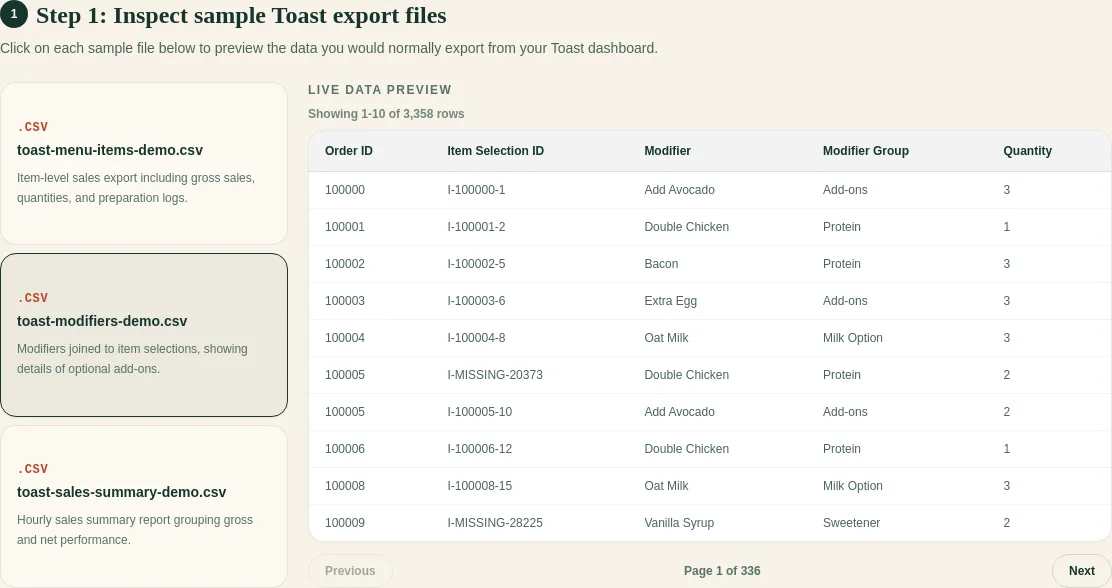
The join matters
The safest join is an exact parent item selection identifier. If a modifier does not have one exact, unique parent item selection, keep it in an exception sheet.
That is better than guessing.
Guessing can lead to:
- modifiers attached to the wrong item;
- revenue counted twice;
- customization patterns that look stronger than they are;
- owner summaries that are hard to audit later.
Safe join example
| Item selection ID | Item | Parent ID on modifier | Modifier | Result |
|---|---|---|---|---|
item-204 | Burger | item-204 | Extra cheese | Safe exact match |
item-204 | Burger | item-204 | Bacon | Safe exact match |
| none | none | item-999 | Avocado | Keep as an exception |
Keep unmatched rows in the exception sheet. Menu name, row order, timestamp, and check number can support a manual investigation, but they make weak automatic join keys.
Why FoodSaver asks you to confirm columns
Toast exports can vary by account, location, settings, or report version. A column that appears as one header in one export may appear differently in another.
FoodSaver detects likely columns, but the review step matters. Confirming the mapping makes the workbook easier to trust and easier to repeat next week.
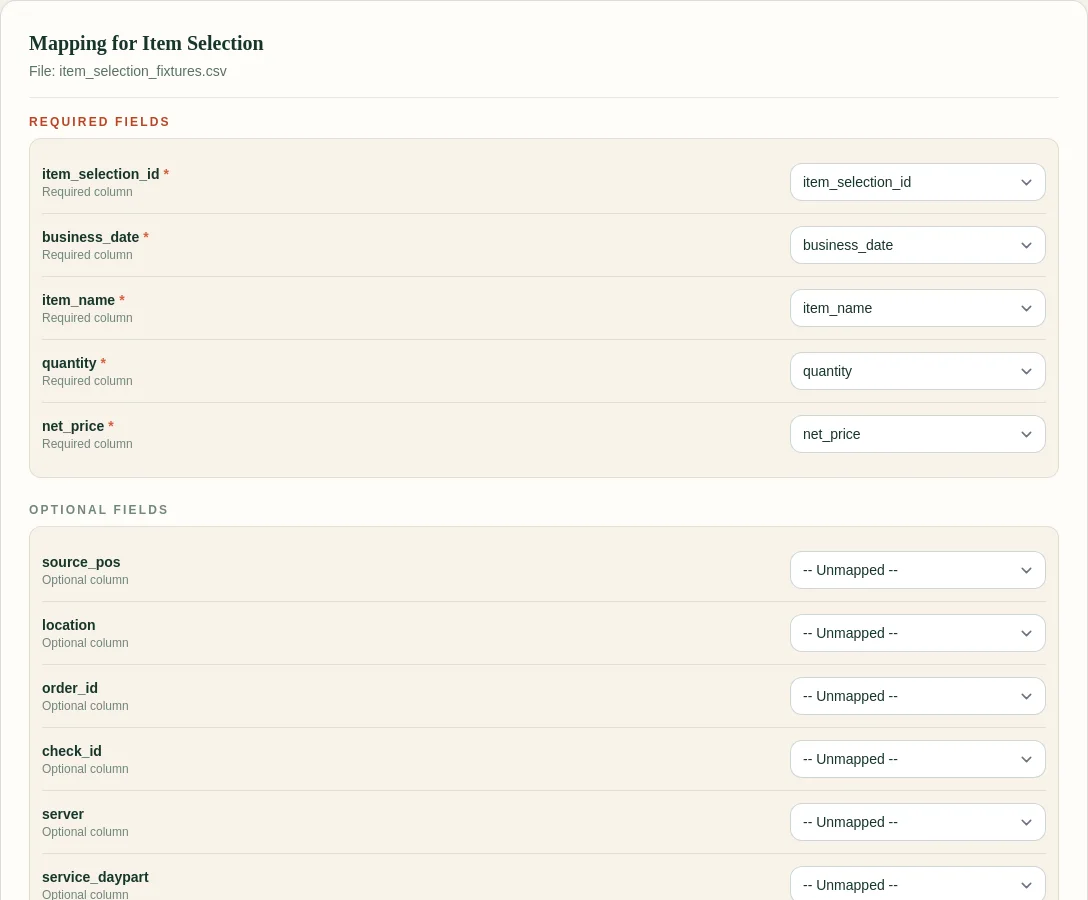
The screenshot shows the required fields used by the current workflow. Optional fields can remain unmapped when they are not present in the export.
You can also download the synthetic examples used for this guide:
A simple rule
Use Item Selection to build the base sales review. Use Modifier Selection to add detail only when each modifier can be traced back to the right item.
FoodSaver keeps that relationship visible in the generated workbook so operators and bookkeepers can review the result instead of trusting a hidden merge.
For the next step, read how to avoid double-counting modifier revenue or use the weekly Toast sales review checklist.
Frequently asked questions
Can I use Item Selection without Modifier Selection?
Yes. Item Selection is enough for an item-level workbook. Modifier Selection adds customization detail when you need it.
Should I add Item Selection and Modifier Selection totals together?
Check whether modifier values represent separate charges or detail already included in the item-level result before combining totals.
What happens when a modifier has no matching parent ID?
FoodSaver keeps it visible as an exception for manual review.