
How to avoid double-counting Toast modifier revenue in Excel
The Toast Prep workbook uses separate item and modifier views because the two exports answer different questions. Adding both views without a reconciliation rule can overstate sales.
Item rows record menu-item selections. Modifier rows record details attached to those selections. A workbook can count the same economic activity twice when it treats both sets of rows as independent sales.
A small numeric example
Assume the source data contains:
| Source | Row | Amount |
|---|---|---|
| Item Selection | Burger | $10.00 |
| Modifier Selection | Extra cheese | $2.00 |
A correct check total might be $12.00. A bad workbook can accidentally add the $10 item total to a separate $12 item-with-modifier total and report $22.00.
The safe review keeps the base item result and modifier detail in separate views, with a reconciliation rule that explains which values contribute to the total.
Start with item revenue
Build the base sales total from Item Selection first. This gives you one stable item-level review before modifiers enter the workbook.
At this stage, check:
- total item sales;
- discounts;
- refunds or voids;
- unusual zero or negative values;
- missing menu item names;
- rows outside the expected period.
Confirm how the export represents modifier values before adding them to the base total.
If you are unsure which file should provide the base grain, start with Item Selection vs Modifier Selection.
Treat modifier rows as detail first
Modifier Selection is best reviewed as detail attached to item rows.
Useful questions include:
- which modifiers were selected most often;
- which items receive the most modifiers;
- whether modifiers are paid, included, or informational;
- which modifiers cannot be matched to an item.
Those operational questions can use modifier counts and attachment detail without creating a second revenue total.
Excel and PivotTable warning
Keep item revenue and modifier detail in separate PivotTables. Use the modifier table for frequency and attachment analysis, then reconcile paid modifiers through a documented formula.
Join only by exact item selection ID
A modifier should attach to an item only when the parent item selection ID is exact and unique.
Avoid fuzzy matching by:
- item name;
- check number alone;
- timestamp alone;
- row order;
- menu group.
Those fields may help a human review an exception, but they are not safe join keys for an automated workbook.
| Matching method | Safe for automatic joins? | Why |
|---|---|---|
| Exact unique parent item selection ID | Yes | Traceable to one item row |
| Item name | No | The same item appears many times |
| Timestamp | No | Multiple selections can share a timestamp |
| Row order | No | Export order can change |
| Check number alone | No | One check contains multiple items |
Keep a separate modifier detail sheet
A clean workbook can include two useful views:
- an item summary with modifier information included once;
- a modifier detail sheet with one row per item-modifier relationship.
The modifier detail sheet should warn reviewers not to sum it blindly with the item summary. It exists for analysis and audit, not as a second sales total.
Show unmatched modifiers
Put unmatched modifiers in an exception sheet with the source file and row number.
That gives the bookkeeper or operator a clear next step:
- Check whether the source export is complete.
- Confirm the date range.
- Review the parent selection ID.
- Decide whether the row should be included manually.
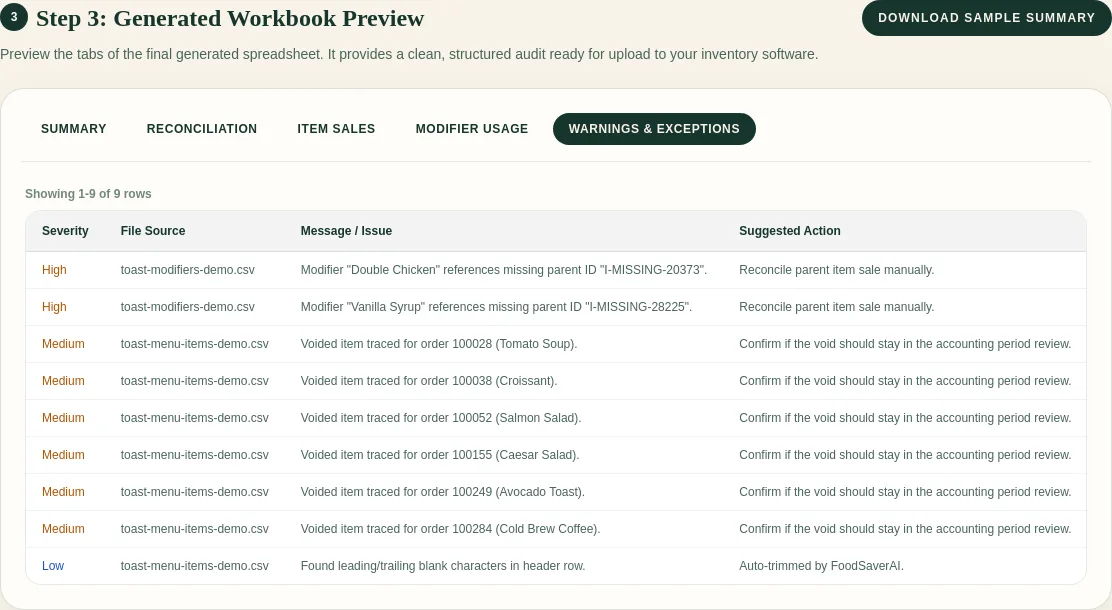
FoodSaver puts these rows in the workbook with their source references so the bookkeeper can resolve them before sending the report.
Frequently asked questions
Is every modifier amount already included in the item amount?
Toast report settings and exported columns can vary. Review the item and modifier amount fields before choosing a reconciliation formula.
Can I match an unmatched modifier by item name?
Use the name to investigate, not as an automatic join key. The same menu item can appear many times in one period.
What should I send to the owner?
Send the item-level summary, a short exception count, and the modifier detail needed for the question at hand. Label each table so the owner knows which figures contribute to the sales total.
Continue with the weekly Toast sales review checklist or review your exports in FoodSaver.