Skip to content

Blog

Toast SFTP vs manual CSV exports

Manual downloads are usually the right place to prove a workflow. SFTP becomes valuable when the file set, schedule, security owner, and correction process are stable.

The problem

Teams often automate the transport before they trust the report. That replaces a visible manual task with a nightly pipeline that can quietly deliver missing, stale, or changed files.

The decision is not “modern versus old.” It is whether the recurring volume justifies key management, monitoring, retention, and re-export procedures.

Example Toast CSV columns

The transport method does not solve schema design. Whether a file is downloaded or retrieved through SFTP, confirm the configured fields:

item_selection_id,business_date,item_name,quantity,net_price
item-204,2026-06-22,Burger,1,10.00

Toast documents that automated data exports can choose the name and order of columns. That configuration can remain stable even when default web-report columns change.

Manual CSV exports

Manual downloads fit when:

  • the workflow is new or occasional;
  • a manager must adjust filters each run;
  • prior dates are commonly corrected;
  • one person can verify the file before sending it;
  • the downstream workbook is still changing.

The cost is repeated labor and inconsistent naming or date selection.

Nightly SFTP exports

SFTP fits when:

  • the same exports run every day;
  • a technical owner can manage SSH keys;
  • monitoring catches missing or late files;
  • access and retention are documented;
  • the team understands how corrected historical data is re-exported.

Toast notes that nightly export files reflect data as of export time. Alterations made later are not automatically reflected in a previously generated file; corrected dates may require manual report exports.

QuestionManualSFTP
SetupLowHigher
Repeated laborHigherLower
Filter flexibilityHighConfigured
Key managementNoYes
Missing-file monitoringHumanMust be built
Historical correctionManual by natureRequires explicit process

Screenshot and demo

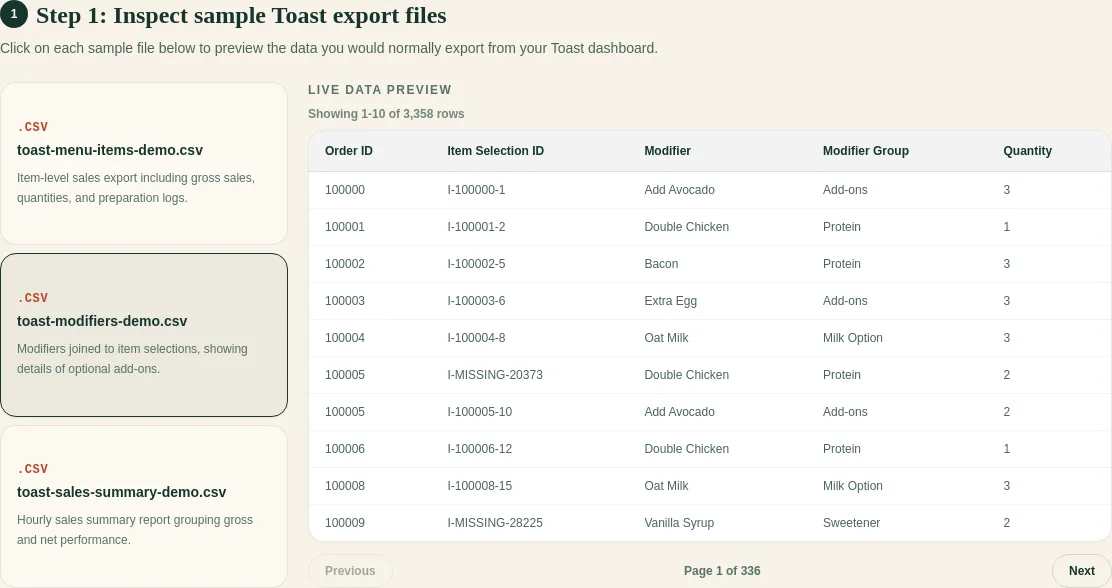
FoodSaver preview of selected Toast CSV files before processing

Regardless of transport, preview file type, date range, headers, and row counts before generating the weekly workbook.

Free sample workbook

Use the samples to stabilize the processing workflow before automating file delivery.

Pricing

The FoodSaver generator includes three free successful workbook generations per UTC day within free limits. Pro is $19/month or $190/year for larger limits, saved mappings, history, email delivery, and 90-day retention.

Compare pricing.

Frequently asked questions

Is Toast SFTP required for FoodSaver?

No. The current workflow accepts manually selected CSV files.

Does SFTP automatically fix changed data?

No. Toast states that later alterations are not reflected in an already created nightly export.

Who should own the SSH key?

A named technical or operations owner should control creation, storage, rotation, and revocation. Do not email private keys.

When should a small restaurant automate?

After the manual workflow is repeated, useful, and stable enough that failures can be recognized quickly.

Sources

Related: Toast export files explained.
Try the free Toast Prep + OneCSV workbook generator.

xtraCHEF alternative for small restaurants: when a workbook is enough

FoodSaver is not a feature-for-feature replacement for xtraCHEF. It is a lighter option for a narrower job: turning supported Toast CSV exports into a reviewable Excel workbook.

The problem

A small restaurant may search for an xtraCHEF alternative for very different reasons:

  • it needs invoice automation and inventory management;
  • it wants recipe costing and actual-versus-theoretical analysis;
  • or it simply needs cleaner Toast sales and modifier files this week.

Those are not equivalent buying decisions.

What xtraCHEF is built to do

xtraCHEF’s official product pages describe a broad restaurant back-office platform: accounts-payable automation, invoice capture, inventory, recipe and plate costing, price tracking, purchasing, and sales/PMIX analysis. Public pricing is handled through a request form at the time of this review on June 23, 2026.

Choose that class of platform when invoice and inventory workflows are the actual problem and the team will maintain the required operational data.

What a lightweight workbook workflow does

FoodSaver currently:

  • accepts Item Selection Details and supported optional Toast exports;
  • asks you to confirm columns;
  • joins modifiers only through exact identifiers;
  • creates clean item, modifier, reconciliation, and exception views;
  • preserves supported optional files as source sheets;
  • leaves accounting and operational decisions to the reviewer.

It does not scan invoices, manage inventory, calculate actual-versus- theoretical food cost, or replace accounting integrations.

Example Toast CSV columns

item_selection_id,business_date,item_name,quantity,net_price
item-204,2026-06-22,Burger,1,10.00

For the narrow workbook workflow, those item-level fields plus exact modifier parent IDs matter more than a full back-office implementation.

Decision table

NeedBetter fit
AP automation and invoice codingxtraCHEF-class platform
Inventory and recipe costingxtraCHEF-class platform
Actual vs theoretical usagextraCHEF-class platform
Clean Toast item/modifier workbookFoodSaver or a manual Excel process
One-off export cleanupStart lightweight
Multi-location back-office standardizationEvaluate a full platform

Screenshot and demo

FoodSaver Toast workbook preview using synthetic data

View the public demo before deciding whether the narrower workflow solves enough of the problem.

Free sample workbook

Pricing

FoodSaver provides three free successful generations per UTC day within free limits. FoodSaverAI Pro is $19/month or $190/year. xtraCHEF asks visitors to request pricing; verify the current quote and included modules directly.

See FoodSaver pricing.

Frequently asked questions

Is FoodSaver a full xtraCHEF replacement?

No. FoodSaver covers a much narrower export-cleanup and workbook job.

Which option is better for invoice processing?

xtraCHEF’s documented scope includes AP automation and invoice capture. FoodSaver does not.

When should I start with a spreadsheet workflow?

When the immediate recurring pain is a small, defined file-cleanup task and you have not validated the need for a full back-office platform.

Is xtraCHEF only for Toast restaurants?

xtraCHEF says it can serve restaurants beyond Toast, while some advanced benefits are recommended with Toast.

Sources

Also compare the MarginEdge alternative decision.

Try the free Toast Prep + OneCSV workbook generator.

How to avoid double-counting Toast modifier revenue in Excel

The Toast Prep workbook uses separate item and modifier views because the two exports answer different questions. Adding both views without a reconciliation rule can overstate sales.

Item rows record menu-item selections. Modifier rows record details attached to those selections. A workbook can count the same economic activity twice when it treats both sets of rows as independent sales.

A small numeric example

Assume the source data contains:

SourceRowAmount
Item SelectionBurger$10.00
Modifier SelectionExtra cheese$2.00

A correct check total might be $12.00. A bad workbook can accidentally add the $10 item total to a separate $12 item-with-modifier total and report $22.00.

The safe review keeps the base item result and modifier detail in separate views, with a reconciliation rule that explains which values contribute to the total.

Start with item revenue

Build the base sales total from Item Selection first. This gives you one stable item-level review before modifiers enter the workbook.

At this stage, check:

  • total item sales;
  • discounts;
  • refunds or voids;
  • unusual zero or negative values;
  • missing menu item names;
  • rows outside the expected period.

Confirm how the export represents modifier values before adding them to the base total.

If you are unsure which file should provide the base grain, start with Item Selection vs Modifier Selection.

Treat modifier rows as detail first

Modifier Selection is best reviewed as detail attached to item rows.

Useful questions include:

  • which modifiers were selected most often;
  • which items receive the most modifiers;
  • whether modifiers are paid, included, or informational;
  • which modifiers cannot be matched to an item.

Those operational questions can use modifier counts and attachment detail without creating a second revenue total.

Excel and PivotTable warning

Keep item revenue and modifier detail in separate PivotTables. Use the modifier table for frequency and attachment analysis, then reconcile paid modifiers through a documented formula.

Join only by exact item selection ID

A modifier should attach to an item only when the parent item selection ID is exact and unique.

Avoid fuzzy matching by:

  • item name;
  • check number alone;
  • timestamp alone;
  • row order;
  • menu group.

Those fields may help a human review an exception, but they are not safe join keys for an automated workbook.

Matching methodSafe for automatic joins?Why
Exact unique parent item selection IDYesTraceable to one item row
Item nameNoThe same item appears many times
TimestampNoMultiple selections can share a timestamp
Row orderNoExport order can change
Check number aloneNoOne check contains multiple items

Keep a separate modifier detail sheet

A clean workbook can include two useful views:

  • an item summary with modifier information included once;
  • a modifier detail sheet with one row per item-modifier relationship.

The modifier detail sheet should warn reviewers not to sum it blindly with the item summary. It exists for analysis and audit, not as a second sales total.

Show unmatched modifiers

Put unmatched modifiers in an exception sheet with the source file and row number.

That gives the bookkeeper or operator a clear next step:

  1. Check whether the source export is complete.
  2. Confirm the date range.
  3. Review the parent selection ID.
  4. Decide whether the row should be included manually.

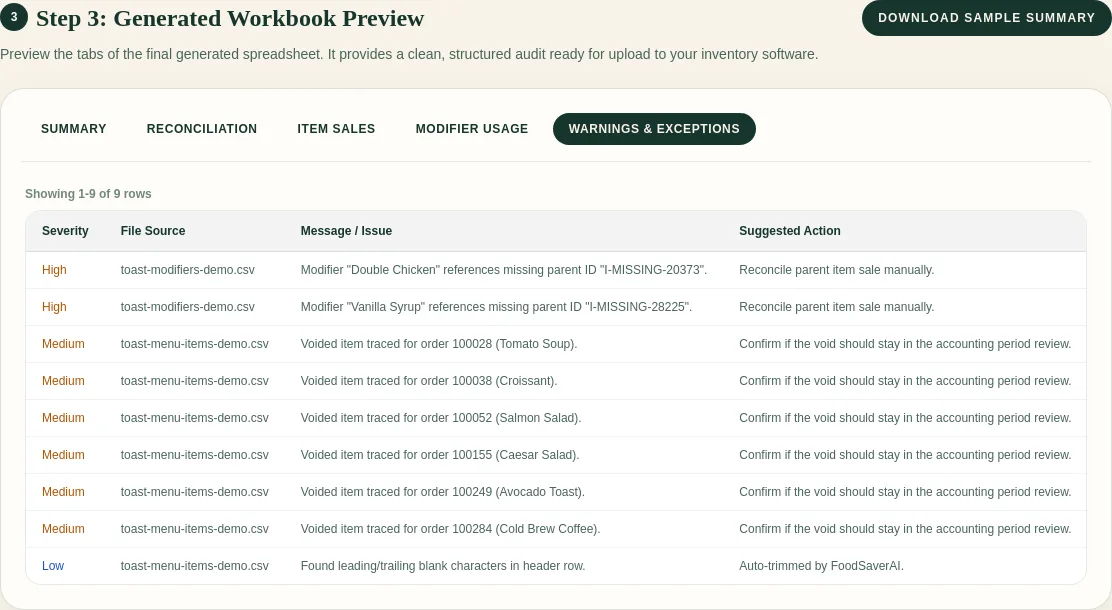
FoodSaver workbook preview showing unmatched parent IDs and voided rows in the Warnings and Exceptions tab

FoodSaver puts these rows in the workbook with their source references so the bookkeeper can resolve them before sending the report.

Frequently asked questions

Is every modifier amount already included in the item amount?

Toast report settings and exported columns can vary. Review the item and modifier amount fields before choosing a reconciliation formula.

Can I match an unmatched modifier by item name?

Use the name to investigate, not as an automatic join key. The same menu item can appear many times in one period.

What should I send to the owner?

Send the item-level summary, a short exception count, and the modifier detail needed for the question at hand. Label each table so the owner knows which figures contribute to the sales total.

Continue with the weekly Toast sales review checklist or review your exports in FoodSaver.

Weekly Toast sales review checklist for restaurant bookkeepers

The Toast Prep workbook grew from a repeated weekly task: clean the exports, check the joins, and give the owner a short list of rows that need attention.

  • What sold?
  • Which modifiers changed the order?
  • Which totals need a second look?
  • What should the owner or general manager check next?

If you already work from Toast reports and Excel, this checklist keeps the review tight.

Download the printable weekly review checklist

1. Start with the right Toast exports

For an item-level sales review, start with Item Selection. Add Modifier Selection when you need to understand add-ons, substitutions, combos, or customizations.

Keep the original exports unchanged. Save a clean copy of the workbook you send to the owner, but keep the source files available until the review is closed.

FoodSaver Toast Prep upload step for selecting supported CSV exports

Need help choosing the files? Read Item Selection vs Modifier Selection.

2. Confirm the reporting period

Before reviewing sales, confirm that all exports cover the same dates and locations.

Check:

  • start and end dates;
  • restaurant location;
  • service periods;
  • whether voids, refunds, or comps are included;
  • whether the export was pulled before the POS day fully closed.

Small date mismatches can make the rest of the review look wrong.

3. Review item sales before modifiers

Item Selection is the base grain for the review. Treat each row as one item selection from the Toast export.

Look for:

  • high-selling items;
  • zero or negative values;
  • unusually high discounts;
  • voided items;
  • duplicate-looking rows;
  • missing item names or menu groups.

Do this before adding modifiers. It gives you a stable base total.

4. Join modifiers carefully

Join Modifier Selection when the item selection identifier is exact and unique. Keep unmatched modifiers visible as exceptions.

This matters because modifier rows can be easy to misread. Some reports show modifier prices. Some show context that should not be added to item revenue again.

See the numeric walkthrough in how to avoid double-counting Toast modifier revenue.

5. Keep exceptions visible

Keep messy rows available for review.

Common exceptions include:

  • unmatched modifiers;
  • duplicate source rows;
  • invalid or missing values;
  • voided selections;
  • rows outside the expected period;
  • columns that changed names between exports.

The owner needs the exception count and the questions that require a decision. The workbook can hold the row-level evidence.

Synthetic FoodSaver workbook preview with unmatched modifiers, voided items, and suggested review actions

6. Send a short owner summary

Keep the summary plain:

  • what files were processed;
  • what period they cover;
  • the biggest sales or modifier patterns;
  • exceptions that need review;
  • the next three checks.

Tie each statement to the source data. This export supports sales review and exception handling; prep, staffing, and purchasing need additional evidence.

Owner email template

7. Save the mapping for next week

If the Toast export headers stay the same, saved mappings can save time. If the headers change, review the mapping again.

A good weekly process is repeatable:

  1. Export files from Toast.
  2. Confirm columns.
  3. Generate the workbook.
  4. Review exceptions.
  5. Send the owner summary.

FoodSaver follows that same flow. Upload Toast exports, confirm the columns, and generate an Excel workbook with source rows, modifier joins, and exceptions ready to review.

Where FoodSaver fits

FoodSaver previews the selected CSV files, confirms the column mapping, and generates item, modifier, reconciliation, and exception views. You still confirm the reporting period, resolve accounting questions, and write the owner summary.

Frequently asked questions

How often should I run this review?

Weekly is a useful starting point for owner reporting and repeated cleanup. Month-end reviews can use the same workflow with a longer period.

Should I edit the original CSV files?

Keep the original exports unchanged. Record corrections and annotations in the review workbook so you can trace each decision.

What if Toast changes a column name?

Review the mapping again. Saved mappings should only apply to the exact same header signature.

Try Toast Prep with your files

Toast Item Selection vs Modifier Selection: what each export is for

Building the Toast Prep workbook exposed the main reporting risk: Item Selection and Modifier Selection use different row grains. Mixing them without a clear join can distort sales and modifier totals.

Item Selection and Modifier Selection answer different questions. You need both when you want modifier detail, but Item Selection remains the base sales file.

Quick comparison

QuestionUse Item SelectionUse Modifier Selection
What sold?YesNo
What add-ons were selected?NoYes
Base sales total?Usually yesReview before summing
Main join fieldItem selection IDParent item selection ID
Can it stand alone?Yes, for item-level reviewUsually no

Item Selection is the base sales file

Item Selection is the item-level source for the workbook. In FoodSaver terms, one Item Selection row is one recorded sale or selection of a menu item in a Toast export.

Use it to review:

  • item names;
  • quantities;
  • item-level sales;
  • discounts;
  • voids;
  • source row numbers;
  • reporting-period coverage.

This is the file to start with. If you only have one Toast export, start here.

item_selection_id,item_name,quantity,net_price
item-204,Burger,1,10.00

Modifier Selection adds customization detail

Modifier Selection explains what was attached to an item. That can include add-ons, substitutions, options, and other customization choices.

Use it to review:

  • which modifiers were selected;
  • how often modifiers appear;
  • which item each modifier belongs to;
  • modifier rows that cannot be matched cleanly.

Modifier Selection needs the item-level file to make sense in a review workbook.

modifier_id,parent_item_selection_id,modifier_name,net_price
mod-501,item-204,Extra cheese,2.00
mod-502,item-204,Bacon,3.00

The two modifier rows describe the Burger selection. They are not two additional burgers.

Synthetic Modifier Selection export displayed in the FoodSaver Toast Prep demo

The join matters

The safest join is an exact parent item selection identifier. If a modifier does not have one exact, unique parent item selection, keep it in an exception sheet.

That is better than guessing.

Guessing can lead to:

  • modifiers attached to the wrong item;
  • revenue counted twice;
  • customization patterns that look stronger than they are;
  • owner summaries that are hard to audit later.

Safe join example

Item selection IDItemParent ID on modifierModifierResult
item-204Burgeritem-204Extra cheeseSafe exact match
item-204Burgeritem-204BaconSafe exact match
nonenoneitem-999AvocadoKeep as an exception

Keep unmatched rows in the exception sheet. Menu name, row order, timestamp, and check number can support a manual investigation, but they make weak automatic join keys.

Why FoodSaver asks you to confirm columns

Toast exports can vary by account, location, settings, or report version. A column that appears as one header in one export may appear differently in another.

FoodSaver detects likely columns, but the review step matters. Confirming the mapping makes the workbook easier to trust and easier to repeat next week.

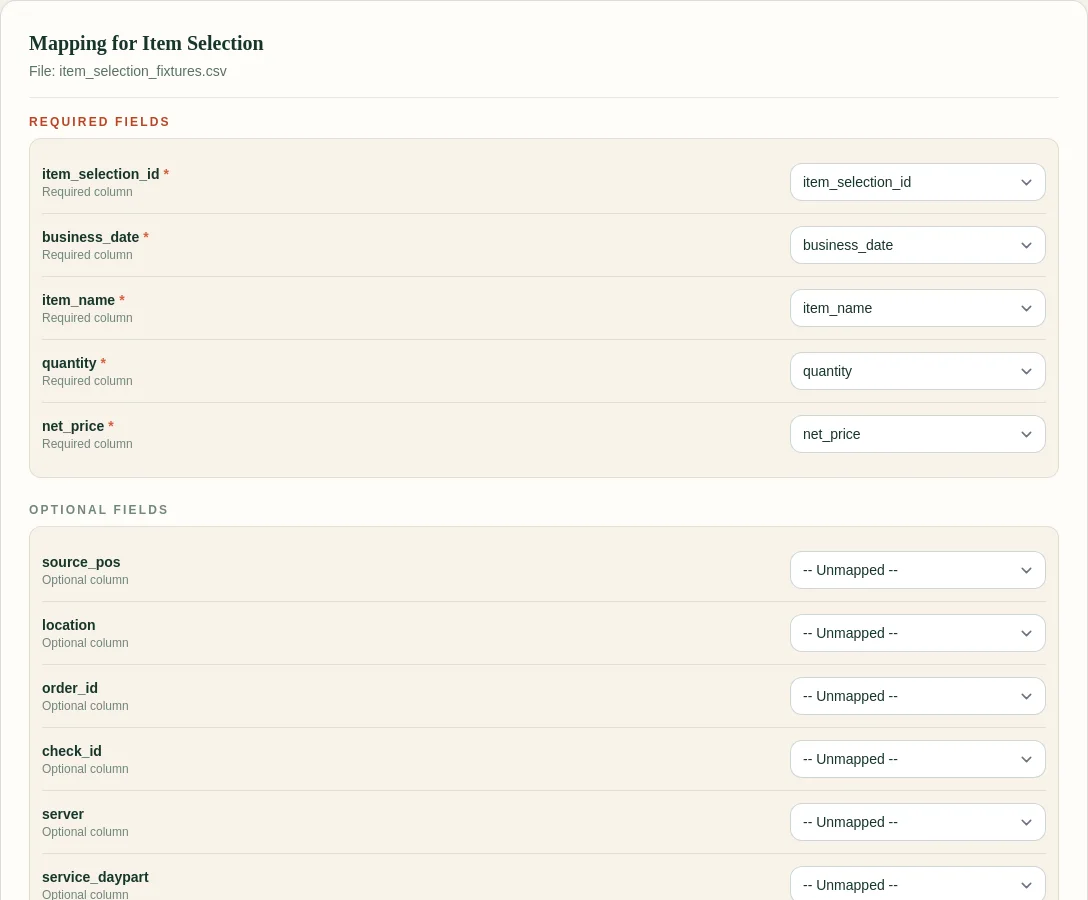
FoodSaver column mapping showing required Item Selection fields mapped to synthetic CSV headers

The screenshot shows the required fields used by the current workflow. Optional fields can remain unmapped when they are not present in the export.

You can also download the synthetic examples used for this guide:

A simple rule

Use Item Selection to build the base sales review. Use Modifier Selection to add detail only when each modifier can be traced back to the right item.

FoodSaver keeps that relationship visible in the generated workbook so operators and bookkeepers can review the result instead of trusting a hidden merge.

For the next step, read how to avoid double-counting modifier revenue or use the weekly Toast sales review checklist.

Frequently asked questions

Can I use Item Selection without Modifier Selection?

Yes. Item Selection is enough for an item-level workbook. Modifier Selection adds customization detail when you need it.

Should I add Item Selection and Modifier Selection totals together?

Check whether modifier values represent separate charges or detail already included in the item-level result before combining totals.

What happens when a modifier has no matching parent ID?

FoodSaver keeps it visible as an exception for manual review.

Try Toast Prep with synthetic or restaurant exports